 Frametile
Turn one image into many
Every image you upload to Frametile is a base image. When you request it through its delivery URL, you can add transformation parameters to the URL and Frametile generates a brand-new image on the fly. Your original is never changed.
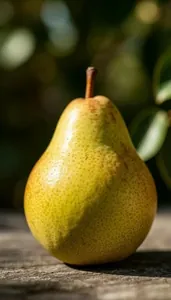
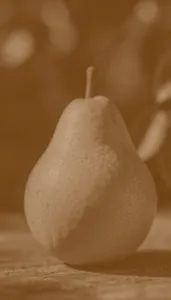
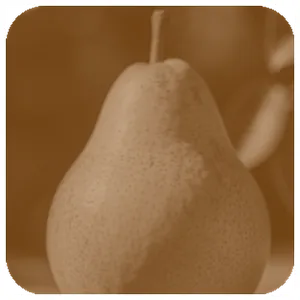
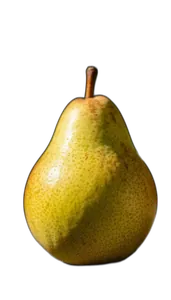
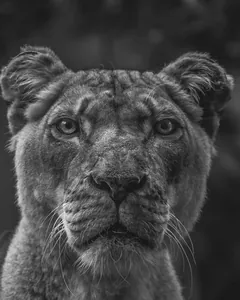
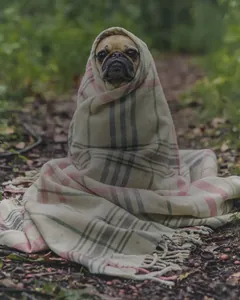
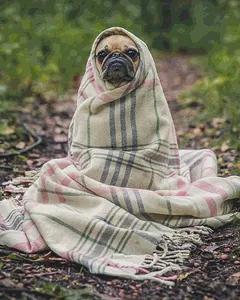
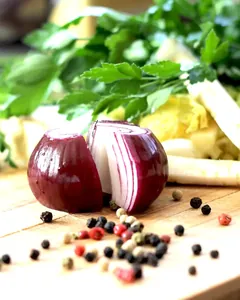
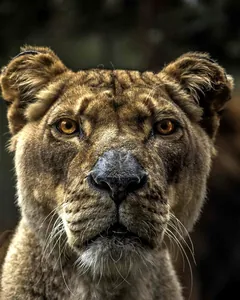
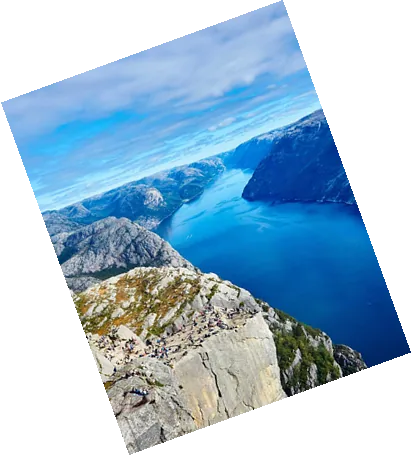
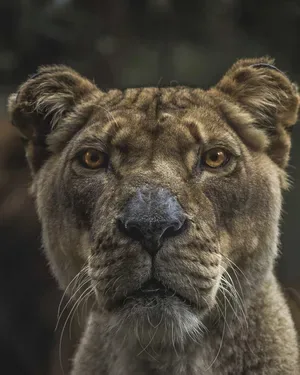
Every picture on this page was generated by Frametile itself from a handful of sample photos, such as pear, fjord and lioness. The caption under each picture is the exact transformation that produced it.
| Concept | What it means | |
|---|---|---|
Base image |
An image you uploaded to a folder. Transformations never modify it. | |
Transformation |
One or more parameters in the URL, such as w_300 or e_sepia, that describe the new image. |
|
Delivery URL |
The address that returns the transformed image. Use it anywhere an image URL works. | |
API key |
Your personal key, created when you first sign in. Every request needs it. |
Anatomy of a delivery URL
https://frametile.com/api/:api_key/images/:folder/:image/:transformations
| Part | What it is | Example |
|---|---|---|
:api_key |
Your personal API key. | YOUR_API_KEY |
:folder |
The folder that holds the base image. | fruit |
:image |
The name of the base image. It is always the last part of the URL. | pear |
:transformations |
Zero or more transformation components, placed before the image name. | w_300,c_fill |
Rules
- A parameter is a short name, an underscore and a value:
w_300. - Separate several parameters in one component with commas:
w_300,h_300,c_fill. - Separate components with
/. They are applied in order, left to right. See chaining. - Inside one component, parameters are applied in a fixed order: resize or crop, rotate, effect, flip, opacity, rounded corners, then border.
- Text values, such as overlay text, must be URL-encoded.
- With no transformations, the original file is returned unchanged.
https://frametile.com/api/YOUR_API_KEY/images/fruit/pear
https://frametile.com/api/YOUR_API_KEY/images/fruit/pear/w_300,h_300,c_fill,g_south
https://frametile.com/api/YOUR_API_KEY/images/fruit/pear/e_grayscale/r_40Resize, crop and scale
Set a size with w_ and h_, then choose how the image should fill that size with a crop mode.
| Parameter | What it does | Example |
|---|---|---|
w_ |
Width in pixels. | w_300 |
h_ |
Height in pixels. | h_300 |
ar_ |
Aspect ratio. Give a width or a height and the other is calculated. | w_300,ar_16:9,c_fill |
c_ |
Crop mode. See the table below. The default is fit. |
c_fill |
g_ |
Gravity: the part of the image to keep or anchor to. | g_north |
x_ · y_ |
Offsets in pixels, used with c_crop, c_thumb and overlays. |
x_20,y_20 |
z_ |
Zoom for c_thumb. A value above 1 keeps less of the image. |
z_1.5 |
dpr_ |
Multiplies the width and height for high-density screens. | w_200,dpr_2.0 |
Crop modes
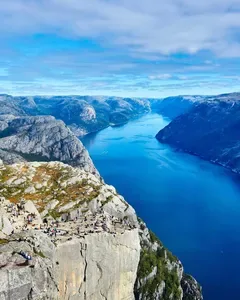
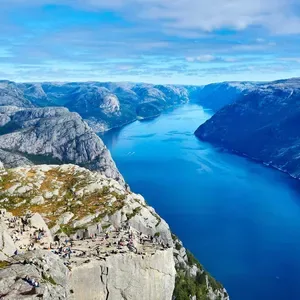
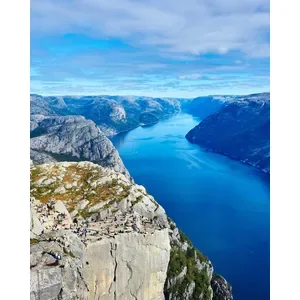
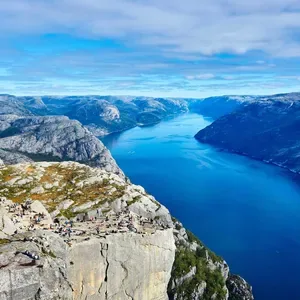
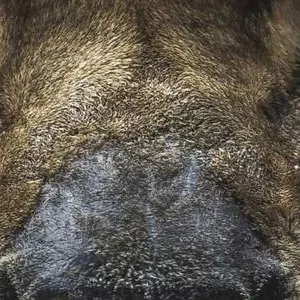
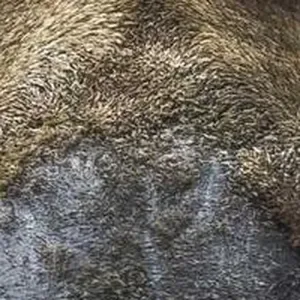
| Mode | What it does | |
|---|---|---|
fit |
Resizes to fit inside the width and height, keeping the aspect ratio. The result can be smaller than the box in one direction. | |
fill |
Resizes and crops so the image fills the width and height exactly. | |
pad |
Resizes to fit, then pads to the exact size. Set the padding colour with b_. b_auto picks a colour from the image edge. |
|
scale |
Stretches to the exact width and height and ignores the aspect ratio. With only one of them set, the ratio is kept. | |
crop |
Cuts out a region of that size without resizing. Choose the region with g_, x_ and y_. |
|
thumb |
Crops a region, then resizes it to the exact size. Use z_ to zoom in. |
|
limit |
Like fit, but never enlarges an image that is already smaller than the box. |
|
lfill · lpad |
Like fill and pad, but return the image unchanged if it is already smaller than the box. |
Gravity
With c_fill, c_crop and c_thumb, gravity decides which part of the image stays in the frame.
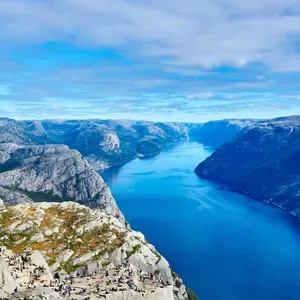
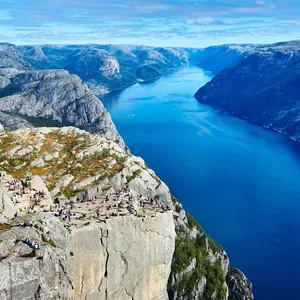
Values: center (default), north, south, east, west, north_east, north_west, south_east and south_west.
g_auto and g_face are accepted, but they behave like g_center. Frametile does not detect faces or the subject of a photo when cropping.Change how an image looks
Add an effect with e_. Some effects take a value after a colon, such as e_blur:600.
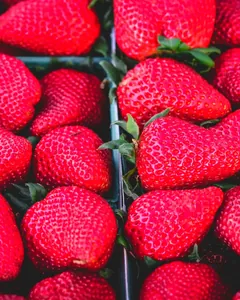
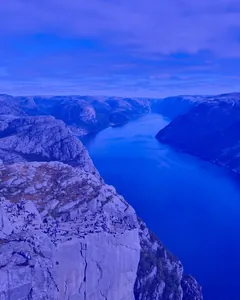
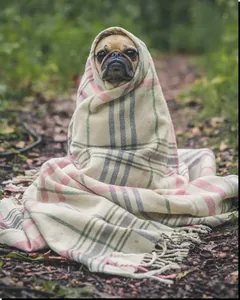
| Effect | What it does | Example |
|---|---|---|
e_grayscale |
Black and white. Also e_blackwhite. |
e_grayscale |
e_sepia |
Warm brown tone. | e_sepia |
e_negate |
Inverts every colour. Also e_invert. |
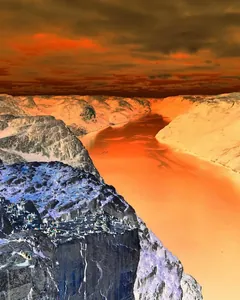
e_negate |
e_blur |
Gaussian blur. The value divided by 100 is the radius in pixels. The default is a light blur. | e_blur:600 |
e_sharpen |
Sharpens fine detail. The change is subtle. | e_sharpen |
e_vignette |
Darkens the corners. The value is the strength in percent. | e_vignette:60 |
e_pixelate |
Blocky pixels. The value is the block size. | e_pixelate:24 |
e_noise |
Adds grain. The value is the amount. Also e_grain. |
e_noise:40 |
e_oil_paint |
A painted look. The change is subtle. | e_oil_paint |
e_cartoonify |
A flat, posterised cartoon look made with image filters. | e_cartoonify |
e_brightness · e_contrast · e_saturation |
Percent change. Positive values increase, negative values decrease. | e_brightness:35 |
e_tint |
Blends a colour over the image. The value is the strength in percent (default 50). Set the colour with co_. |
e_tint:45,co_blue |
e_outline |
Draws an outline. The value is the width and co_ sets the colour. |
e_outline:3,co_white |
e_shadow |
Adds a drop shadow. The value is the blur radius. The canvas grows slightly, so the result is a PNG. | e_shadow |
e_improve |
Automatic enhancement. Also e_auto_enhance, e_auto_color, e_auto_contrast and e_auto_brightness. |
e_improve |
e_trim |
Crops away a uniform border. co_ sets the border colour. |
e_trim |
e_make_transparent |
Makes one colour transparent. The value is the tolerance, co_ sets the colour. |
e_make_transparent:30,co_white |
e_background_removal |
Removes the background. See below. | e_background_removal |
To stack effects, list them in one component, e_grayscale,e_sepia, or in separate components. They are applied in order.
AI background removal
e_background_removal cuts the subject out of its background and keeps the transparency. It runs a neural-network segmentation model (rembg) on the Frametile server.
If that model is not available on the server, a simpler method based on the colour at the image edges is used. It works best on plain backgrounds.
The result is transparent, so it is returned as a PNG unless you choose another format. The shortcut t_bg-rem does the same thing.
Layer text and images
Add a layer with l_. A layer can be text or another image.
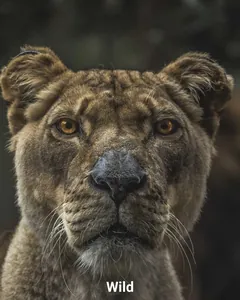
Text overlay
l_text:Font_Size_Weight_Align:Your%20text| Part | What it is | Example |
|---|---|---|
Font |
A font family. Bundled fonts include Roboto, Noto Sans, Noto Serif, Noto Sans Mono and Noto Sans CJK JP for Japanese text. Write the name without spaces. | Roboto |
Size |
Font size in pixels. | 72 |
Weight (optional) |
bold, italic, normal, light, thin, medium, semibold, extrabold or black. |
bold |
Align (optional) |
left, center or right. |
center |
Text |
Your text, URL-encoded. It comes after the second colon. | Fresh%20Pear |
co_ |
Text colour. The default is black. | co_white |
g_ · x_ · y_ |
Where the text sits. The default gravity for text is south. The offsets move it away from the edge. |
g_north,y_30 |
w_ · h_ with c_fit |
Wraps the text inside a box and shrinks it until it fits. Without c_fit, w_ only shrinks the font until the line fits the width. |
w_400,c_fit |
Image overlay
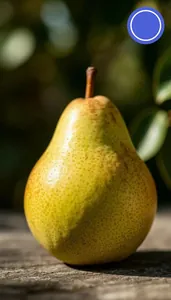
l_badge,w_110,g_north_east,x_16,y_16Use the name of another image you own in Frametile after l_. Then size and place it in the same component.
| Parameter | What it does | Example |
|---|---|---|
w_ · h_ |
Resizes the overlay. With only one of them, the ratio is kept. | w_110 |
o_ |
Overlay opacity from 0 to 100. | o_80 |
g_ · x_ · y_ |
Where the overlay sits and how far it is from the edge. | g_north_east,x_16,y_16 |
e_sepia/l_text:Roboto_72_bold:Fresh. Inside a component that has a layer, only the layer is applied. Output settings such as f_ and q_ next to a layer apply to the whole image.Corners, borders, rotation and opacity
| Parameter | What it does | Example |
|---|---|---|
r_ |
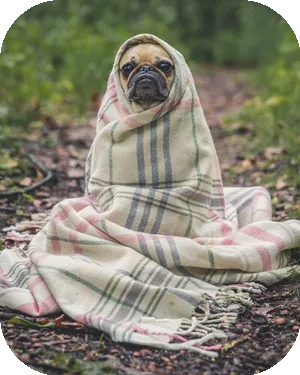
Rounded corners. The value is the radius in pixels. Corners become transparent, so the result is a PNG. | r_60 |
bo_ |
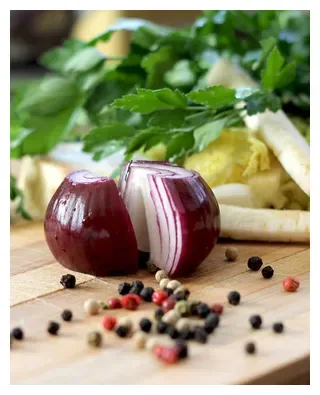
A border, written as the width in pixels, an underscore and a colour. | bo_10px_white |
b_ |
Background colour. It fills the padding of c_pad, and flattens any transparency onto that colour. |
b_4B5FD6 |
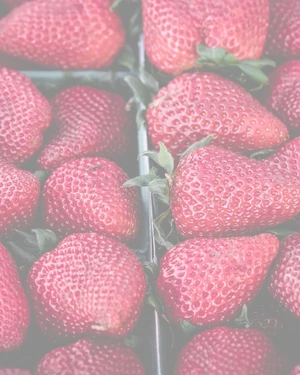
o_ |
Opacity of the whole image from 0 to 100. | o_50 |
a_ |
Rotation in degrees. The canvas grows to fit and the new corners are transparent. | a_20 |
fl_horizontal · fl_vertical |
Mirror the image left to right, or top to bottom. | fl_horizontal |
co_ |
A colour used by text overlays and by effects such as e_tint and e_shadow. |
co_white |
Colours
Use a colour name such as white or red, or a hex value without the hash: 4B5FD6. The form rgb:4B5FD6 also works.
Choose the format and the quality
| Parameter | What it does | Example |
|---|---|---|
f_ |
Output format: jpg, png, webp, avif or auto. |
f_webp |
q_ |
Quality from 1 to 100, or auto (85). It applies to JPEG and WebP output. |
q_80 |
- With no
f_, the result is a JPEG, or a PNG when the image has transparent areas. f_autoreturns WebP, or PNG when the image has transparent areas.- Pick the format with
f_in the same component as your other parameters:w_480,f_webp,q_80.
What it means for file size
Measured on the sample photo at w_480. Your sizes will depend on your own images.
| Format | File size | Example |
|---|---|---|
JPEG |
63.6 KB | f_jpg |
PNG |
439.0 KB | f_png |
WebP |
41.3 KB | f_webp |
AVIF |
33.4 KB | f_avif |
| JPEG quality | File size | Example |
|---|---|---|
20 |
15.3 KB | f_jpg,q_20 |
50 |
25.6 KB | f_jpg,q_50 |
80 |
43.1 KB | f_jpg,q_80 |
100 |
200.7 KB | f_jpg,q_100 |
auto |
50.5 KB | f_jpg,q_auto |
Shortcuts for common looks
Write t_ or bl_ followed by a name, for example t_bg-rem. You can mix a name with other parameters: t_sepia,w_300.
| Name | Same as | |
|---|---|---|
bg-rem · bg-removal · bg-remove · bgremoval |
e_background_removal |
|
bg-rem-gray |
e_background_removal, then e_grayscale |
|
gray · bw |
e_grayscale |
|
sepia |
e_sepia |
|
cartoon · cartoonify |
e_cartoonify |
|
sharpen |
e_sharpen |
|
noise |
e_noise:18 |
|
vignette · outline · shadow |
e_vignette, e_outline, e_shadow |
Build an image step by step
Each /-separated component works on the result of the one before it.
https://frametile.com/api/YOUR_API_KEY/images/fruit/pear/c_fill,w_300,h_300/e_sepia/r_40/bo_6px_whitec_fill,w_300,h_300crops to a 300 by 300 square.e_sepiagives it a sepia tone.r_40rounds the corners.bo_6px_whiteadds a white border.
Who can request an image
Every request needs a valid API key, and the key must belong to the owner of the image or of its folder. Generated images are cached by their full URL, so a repeat request is served from storage instead of being generated again. Changing any character in the URL creates a new image.
| Status | Meaning | Common cause |
|---|---|---|
401 |
The API key is not valid. | A typo in <code>:api_key</code>. |
403 |
The key is valid but does not own the image or its folder. | Requesting another user's image. |
404 |
The base image was not found. | A wrong folder or image name. |
400 |
A parameter could not be applied. | An overlay name that does not exist or that you cannot use. |
Every parameter at a glance
| Parameter | Purpose | Example |
|---|---|---|
w_ · h_ |
Width and height in pixels. | w_300,h_300 |
ar_ |
Aspect ratio. | ar_16:9 |
c_ |
Crop mode: fit, fill, pad, scale, crop, thumb, limit, lfill, lpad. | c_fill |
g_ |
Gravity. | g_south |
x_ · y_ · z_ |
Offsets and zoom. | x_20,y_20 |
dpr_ |
Pixel density multiplier. | dpr_2.0 |
e_ |
An effect, with an optional value after a colon. | e_blur:600 |
l_ |
A text or image layer. | l_text:Roboto_72_bold:Fresh |
co_ |
Colour for text and effects. | co_white |
r_ |
Rounded corners in pixels. | r_60 |
bo_ |
Border: width in pixels and colour. | bo_10px_white |
b_ |
Background colour. | b_white |
o_ |
Opacity from 0 to 100. | o_50 |
a_ |
Rotation in degrees. | a_20 |
fl_ |
Flip: horizontal or vertical. | fl_horizontal |
f_ |
Output format. | f_webp |
q_ |
Output quality. | q_80 |
t_ · bl_ |
A named transformation. | t_bg-rem |