Frametile
How do you add text to an image by URL?
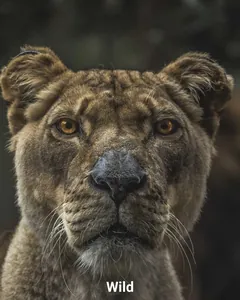
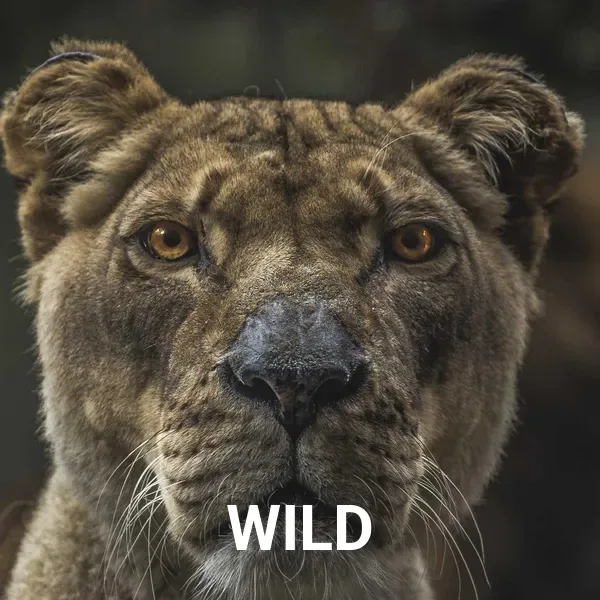
Add a text layer to the image's URL. l_text:Roboto_64_bold:WILD,co_white,g_south,y_50 draws the word WILD in white, bold 64 pixel Roboto, along the bottom edge and 50 pixels up from it. l_text starts the layer, then come the font, size and weight, and then the text itself. co_ sets the colour, g_ says where the text sits and y_ moves it away from that edge.
Your original photo is never changed. The URL returns a new image with the text drawn on it, and the same URL returns the same image every time, so you can use it anywhere an image address works.
What does the text overlay syntax look like?
l_text:Font_Size_Weight_Align:Your%20text,co_white,g_south,y_40| Part | What it is | Example |
|---|---|---|
| Font | A font family, written without spaces. Bundled fonts include Roboto, Noto Sans, Noto Serif, Noto Sans Mono and Noto Sans CJK JP for Japanese text. |
Roboto
|
| Size | Font size in pixels. |
64
|
| Weight (optional) |
bold, italic, normal, light, thin, medium, semibold, extrabold or black.
|
bold
|
| Align (optional) |
left, center or right, for text that wraps onto several lines.
|
center
|
| Text | Your words, URL-encoded, after the second colon. |
Fresh%20Pear
|
co_
|
Text colour: a name such as white or a hex value without the hash. The default is black.
|
co_white
|
g_ · x_ · y_
|
Where the text sits, and how far it is moved away from that edge. |
g_south,y_40
|
The text layer is its own step, separated from other steps by a slash, and it is drawn on top of whatever the steps before it produced. That ordering matters, and most of the mistakes further down come from forgetting it.
How do you position the text?
Use gravity, g_, to pick an edge or corner: north, south, east, west, center and the four corners such as north_west. Text sits at the bottom, south, if you do not say otherwise. Then use x_ and y_ to move it away from that edge so it does not touch the border.
https://frametile.com/api/YOUR_API_KEY/images/fruit/pear/w_600,h_600,c_fill/l_text:Roboto_48_bold:Summer,co_white,g_north_west,x_24,y_24That puts the word in the top-left corner with a 24 pixel margin. A caption along the bottom needs only g_south and a y_ value. A centred headline uses g_center and no offsets.
Notice that the example above resizes first, in its own step, and adds the text second. That is the order to use, and the mistakes section below explains why.
How do you wrap long text so it fits?
Give the layer a width and ask it to fit: w_480,c_fit wraps the text inside a box 480 pixels wide and shrinks it until it fits. Without c_fit, w_ only shrinks the font until a single line is as wide as you asked for, and the text does not wrap.
https://frametile.com/api/YOUR_API_KEY/images/fruit/pear/w_600,h_600,c_fill/l_text:Roboto_40_bold_center:Fresh%20pears%20picked%20this%20morning,co_white,w_480,c_fit,g_centerAdd center as the align part, as in Roboto_40_bold_center, so a wrapped headline is centred on every line, not only the first.
Why does the text have to be URL-encoded?
Because several characters mean something in a URL. A space ends the address, a # starts a fragment, a ? starts a query, and % and & have jobs of their own. Encoding turns each of them into a % code, so they reach Frametile as plain text.
| Character | Encoded | |
|---|---|---|
| space |
%20
|
|
| % |
%25
|
|
| & |
%26
|
|
| # |
%23
|
|
| ? |
%3F
|
Do not encode by hand. Let your language do it, and encode only the text, not the whole URL:
const text = encodeURIComponent("Save 50% today");
const url = `https://frametile.com/api/YOUR_API_KEY/images/fruit/pear/w_600,h_600,c_fill/l_text:Roboto_48_bold:${text},co_white,g_south,y_40`;Commas, slashes and colons need more care. In a transformation, a comma separates parameters, a slash separates steps and a colon separates the parts of the text layer, so even when encoded they may still be read as syntax. Keep them out of overlay text where you can, and when you cannot, test that exact URL before you rely on it.
Text overlay recipes
Each recipe is one URL, built from parameters described in the overlay docs. Steps run left to right.
| Goal | Transformation | Notes |
|---|---|---|
| Caption along the bottom |
w_600,h_600,c_fill/l_text:Roboto_48_bold:Summer%20Sale,co_white,g_south,y_40
|
Resize in the first step, text in the second. |
| Label in a corner |
w_600,h_600,c_fill/l_text:Roboto_36_bold:NEW,co_white,g_north_east,x_24,y_24
|
Gravity plus equal offsets gives an even margin. |
| Readable text on a bright photo |
w_600,h_600,c_fill/e_brightness:-30/l_text:Roboto_56_bold:WILD,co_white,g_center
|
Darken in its own step first, so white text stands out. |
| Social share card |
w_1200,h_630,c_fill/e_brightness:-35/l_text:Roboto_64_bold_center:Your%20title,co_white,w_1000,c_fit,g_center
|
1200 by 630 is the size most social networks show for link previews. |
| Text over a cutout |
e_background_removal/l_text:Roboto_64_bold:SALE,co_white,g_south
|
See background removal for how the cutout step works. |
For a logo or badge instead of words, use an image layer: l_badge,w_110,g_north_east,x_16,y_16 places another image you own in Frametile in the corner. It follows the same position rules as text.
Can you personalise images with dynamic text?
Yes. Build the URL in your code for each person, product or order, and put the changing words in the text part. A name on a welcome banner, a price on a product tile or a title on a share card all work the same way: one base photo, a different URL for each.
const name = encodeURIComponent(user.firstName);
const banner = `https://frametile.com/api/YOUR_API_KEY/images/fruit/pear/w_1200,h_400,c_fill/l_text:Roboto_72_bold:Welcome%20${name},co_white,g_center`;Two things to know before you do this at scale:
- Every different text is a different image. Frametile stores each generated image by its full URL, so a repeat request for the same text is served from storage, while a new name creates and stores a new file. A few thousand personalised banners is fine, but it is worth knowing before you generate millions.
- Your API key is part of the URL. Anyone who receives an image URL can see it. Treat these URLs like a password: generate them on your server, and think twice before putting them in public pages or mass emails.
What are the most common text overlay mistakes?
- Putting an effect in the same step as the text. Inside a step that has a layer, only the layer is applied, so
e_sepia,l_text:...silently drops the sepia. Writee_sepia/l_text:...instead. - Adding text before resizing. Steps run in order, so text drawn first is scaled along with the photo. Resize first, then add the text at the size you actually want.
- Forgetting to encode. A raw space or
#in the text breaks the URL. Encode the text with your language's own function, and keep commas, slashes and colons out of it where you can. - White text on a pale area. Pick a gravity that lands on a plain part of the photo, or darken the image first, as in the recipe above.
- Setting
w_withoutc_fit. You get a smaller font, not wrapped lines. - Leaving the words only in the picture. Text drawn into an image cannot be selected, translated or read by a search engine. Put the same words in the page's HTML or in the image's
alttext.
Resizing comes first in nearly every recipe here, and it has its own guide: how to resize and crop images by URL. Once the picture looks right, shrink it with the right output format: WebP vs AVIF vs JPEG. More finished text examples are on the examples page.
Try it on your own images
Upload a photo, copy its URL and start editing the URL. Every parameter above works the same way.